---
breadcrumbs:
- - /updates
- updates
- - /updates/same-site
- SameSite Updates
page_name: test-debug
title: "Tips for testing and debugging SameSite-by-default and \u201CSameSite=None;\
\ Secure\u201D cookies"
---
*(Last updated: Mar 18, 2021)*
What: An overview of steps you can take to test your site against Chrome’s new
SameSite-by-default cookie behavior, and tips for debugging cookie issues that
may be related.
Who: You should read this if your site [provides or depends upon cross-site
cookies](https://web.dev/samesite-cookie-recipes/#use-cases-for-cross-site-or-third-party-cookies).
Some of these tips will probably be of limited use unless you feel comfortable
using [Chrome
DevTools](https://developers.google.com/web/tools/chrome-devtools), and
understand what an [HTTP
request](https://developer.mozilla.org/en-US/docs/Web/HTTP/Overview) is and [how
cookies are used](https://developer.mozilla.org/en-US/docs/Web/HTTP/Cookies) in
HTTP requests and responses.
How: Please use **Chrome 84** or newer (Beta included). (Older versions of
Chrome may implement subtly different SameSite behavior, particularly for Chrome
extensions, and may not include the debugging tools mentioned below.) You can
check your version number by going to chrome://version.
[TOC]
## Testing tips
### Enable the new SameSite behavior
To ensure that you are testing against the correct browser behavior, you must
first ensure that the new SameSite behavior is enabled. As of Chrome 85, the new
behavior is enabled by default in Chrome, so you only need to make sure that the
features are not explicitly disabled by your flags settings. (**NOTE**: These
flags were removed in Chrome 91, as the behavior is enabled by default as of
Chrome 85. If you are running Chrome 91 or newer, you can skip to step 3.)
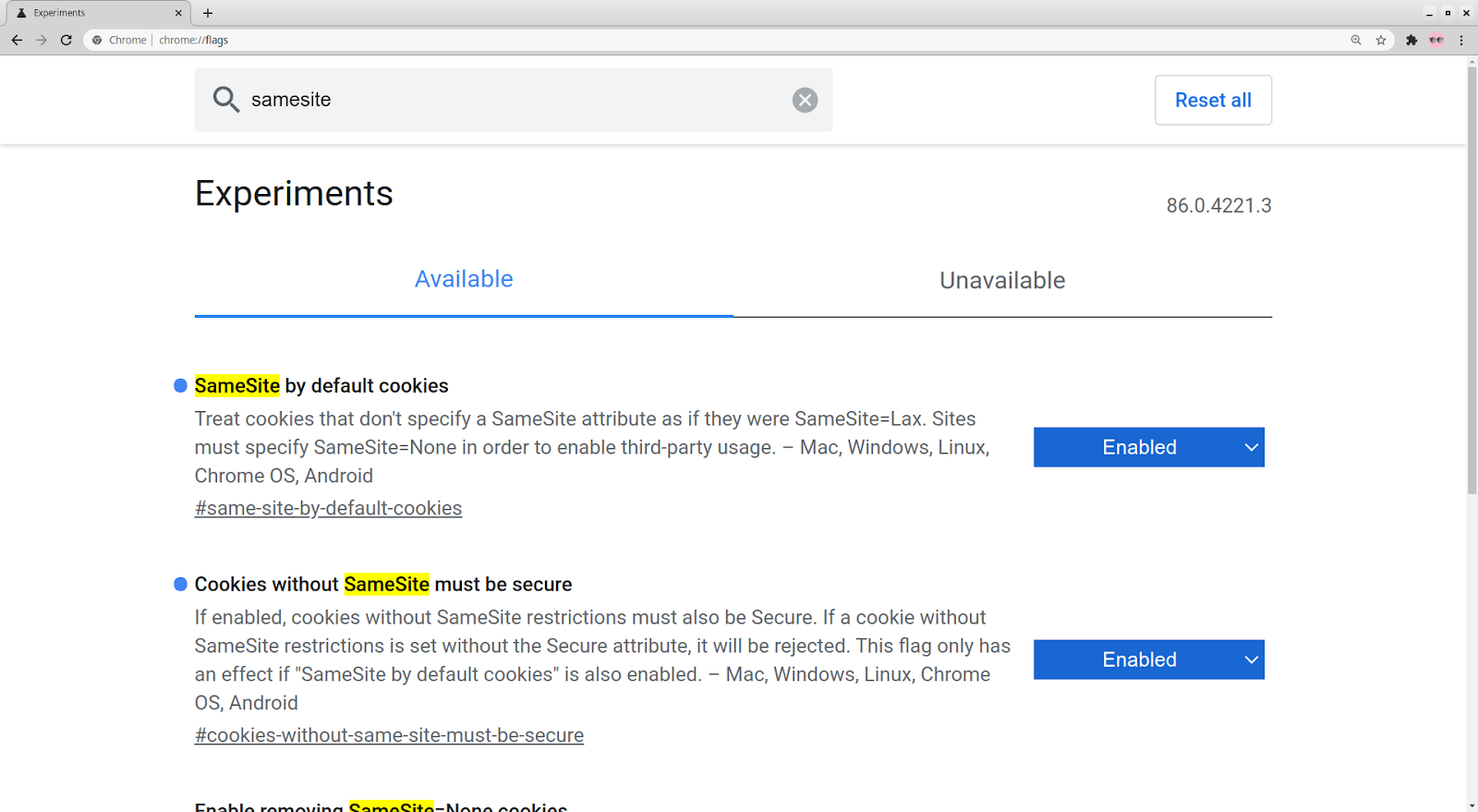
Go to chrome://flags and enable (or set to "Default") both
#same-site-by-default-cookies and #cookies-without-same-site-must-be-secure.
Restart Chrome for the changes to take effect, if you made any changes.
Verify that your browser is applying the correct SameSite behavior by
visiting [this test site](https://samesite-sandbox.glitch.me/) and checking
that all rows are green.
Chrome 84 introduces a flag called #enable-experimental-cookie-features, which
enables a group of new and upcoming cookie features, including
#same-site-by-default-cookies and #cookies-without-same-site-must-be-secure.
This flag also removes the 2 minute "Lax+POST" exception for top-level
cross-site POST requests. This can be a convenient way to preview the future
behavior of cookies in Chrome, but it may also result in unexpected behavior as
the set of cookie features enabled by this flag is subject to change.
 ### Testing your site
Thoroughly test site functionality, with a focus on anything involving federated
login flows, online payments, 3-D Secure verification, multiple domains, or
cross-site embedded content (iframes, images, videos, etc.).
For any flows involving POST requests (such as some login flows), we recommend
that you test with and without a long (> 2 minute) delay, due to the 2 minute
threshold for [Lax+POST](/updates/same-site) behavior (see below for more
Lax+POST tips).
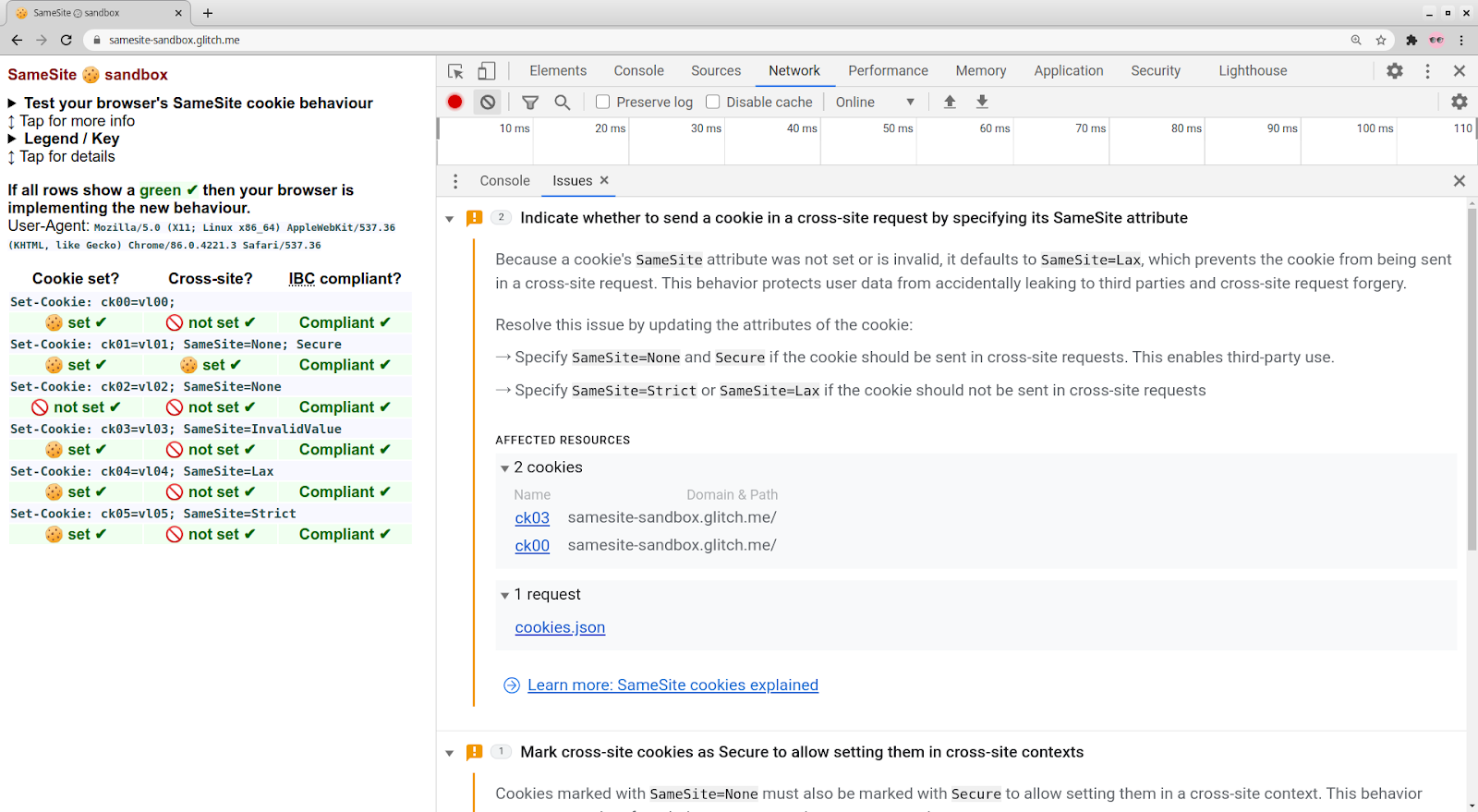
You will know if cookies used on your site will be affected by the new SameSite
behavior if you see a banner in DevTools about issues detected while testing
your site, and clicking on the banner takes you to one or more issues related to
SameSite. Issues can also be viewed directly in the [Issues
](https://developers.google.com/web/tools/chrome-devtools/issues)tab, found in
the three-dot menu in DevTools labeled "More tools". From the Issues tab, you
can view the cookies triggering each warning by clicking on "affected
resources".
### Testing your site
Thoroughly test site functionality, with a focus on anything involving federated
login flows, online payments, 3-D Secure verification, multiple domains, or
cross-site embedded content (iframes, images, videos, etc.).
For any flows involving POST requests (such as some login flows), we recommend
that you test with and without a long (> 2 minute) delay, due to the 2 minute
threshold for [Lax+POST](/updates/same-site) behavior (see below for more
Lax+POST tips).
You will know if cookies used on your site will be affected by the new SameSite
behavior if you see a banner in DevTools about issues detected while testing
your site, and clicking on the banner takes you to one or more issues related to
SameSite. Issues can also be viewed directly in the [Issues
](https://developers.google.com/web/tools/chrome-devtools/issues)tab, found in
the three-dot menu in DevTools labeled "More tools". From the Issues tab, you
can view the cookies triggering each warning by clicking on "affected
resources".
 Note that the presence of a cookie in an issue does not necessarily indicate
that something is broken -- you must test thoroughly and determine that for
yourself. Some of those blocked cookies may not affect any site functionality.
Some "legacy" cookies are also intentionally left non-compliant as a
[workaround](https://web.dev/samesite-cookie-recipes/#handling-incompatible-clients)
for [incompatible clients](/updates/same-site/incompatible-clients), and will
continue to appear in the Issues tab despite the site having been updated.
### Testing under Lax+POST
If your site does not use POST requests, you can ignore this section.
Firstly, if you are relying on top-level, cross-site POST requests with cookies
then these will only be sent if they specify SameSite=None; Secure. Also
consider the
[POST/Redirect/GET](https://en.wikipedia.org/wiki/Post/Redirect/Get) pattern as
a way of removing the need for the cookie on that request. Under the new
SameSite behavior, any cookie that was not set with a specified SameSite
attribute value will be treated as SameSite=Lax by default, which will exclude
cookies from these requests. However there is the
“[Lax+POST](/updates/same-site)” special exception that Chrome makes for such
cookies for the first 2 minutes after they are created, which allows them to be
sent on top-level cross-site POST requests (which normal Lax cookies are
excluded from). This special exception for fresh cookies will be phased out in
future Chrome releases.
When testing, you should pay special attention to any requests that require
cross-site POST requests (such as some login flows). If a cookie was granted
Lax+POST due to its age (< 2 minutes), but would otherwise be blocked under
Lax rules, you will most likely see a message in the DevTools console about a
cookie being allowed on a non-idempotent top-level cross-site request (but in
some cases you may not -- check the NetLog (see below) for the definitive
answer). We recommend that you test with both a short (< 2 min) and long
(> 2 min) delay between setting the cookie and making the POST request.
We also recommend testing with the eventual SameSite behavior (after Lax+POST is
phased out). To do this, run Chrome from the command line with the additional
flag --enable-features=SameSiteDefaultChecksMethodRigorously to disable the
Lax+POST exception. (This is automatically applied if you enabled the SameSite
behavior via the #enable-experimental-cookie-features flag.)
For automated testing, it may be impractical to wait for 2 minutes to test the
long-delay behavior. For this purpose, you can use the command line flag
--enable-features=ShortLaxAllowUnsafeThreshold to lower the 2 minute threshold
to 10 seconds.
### Testing Chrome extensions
Chrome extensions must also abide by the new SameSite cookie behavior. Extension
pages, which have a chrome-extension:// scheme URL, are generally considered
cross-site to any web page (https:// or http://). There are certain scenarios
where an exception is made (this is accurate as of Chrome 80, but behavior may
change in the future):
If an extension page initiates a request to a web URL, the request is
considered same-site if the extension has [host
permission](https://developer.chrome.com/extensions/declare_permissions) for
the requested URL in the extension’s manifest. This could happen, for
example, if an extension page has an iframe embedding a site that the
extension has host permission for.
If the top level frame (i.e. the site shown in the URL bar) is an extension
page, and the extension has host permission for the requested URL, and the
requested URL and the initiator of the request are same-site to each other,
and the extension has host permission for the initiator origin, then the
request is considered same-site. For example, this could happen if an
extension has host permission for “\*://\*.site.example/”, and an extension
page loads a.site.example in an iframe, which then navigates to
b.site.example.
The [chrome.cookies API](https://developer.chrome.com/extensions/cookies) is
able to read and set any kind of cookie, including SameSite cookies. However, a
web page embedded in an extension page is considered to be in a third party
context for the purposes of document.cookie (JavaScript) accesses. For [content
scripts](https://developer.chrome.com/extensions/content_scripts), the behavior
of SameSite cookies is exactly the same as if the request were initiated from
the page on which the content script is running.
If your extension embeds a web page on an extension page, we recommend testing
that the necessary cookies are sent on the web request. Blocked cookies should
emit warning messages in the DevTools console for the extension page. If the
special exceptions above apply, no message will appear.
## Something is broken! -- Debugging tips
### The basics
You should suspect SameSite as the underlying problem if your site makes
requests to other domains in embedded contexts (such as embedded
images/videos/social posts, widgets from other sites, etc.), makes POST requests
cross-site (such as in some login and payment flows), fetches cross-site
resources via JavaScript, or otherwise [accesses cookies across
sites](https://web.dev/samesite-cookie-recipes/#use-cases-for-cross-site-or-third-party-cookies).
If the issue is primarily a browser or tab crashing or hanging, it is less
likely to be caused by the new SameSite cookie behavior.
First, check if the problem persists after setting the SameSite flags above to
“Disabled” (note: setting them to “Default” may or may not disable the
features). Remember to restart your browser for the changes to take effect. If
the problem persists, you should suspect a root cause other than the new
SameSite cookie behavior.
If you have turned on third-party cookie blocking (see
chrome://settings/cookies), try turning it off. This is particularly relevant
for Android WebViews, which [block third-party cookies by
default](https://developer.android.com/reference/kotlin/android/webkit/CookieManager#setacceptthirdpartycookies),
even if they have SameSite=None and Secure.
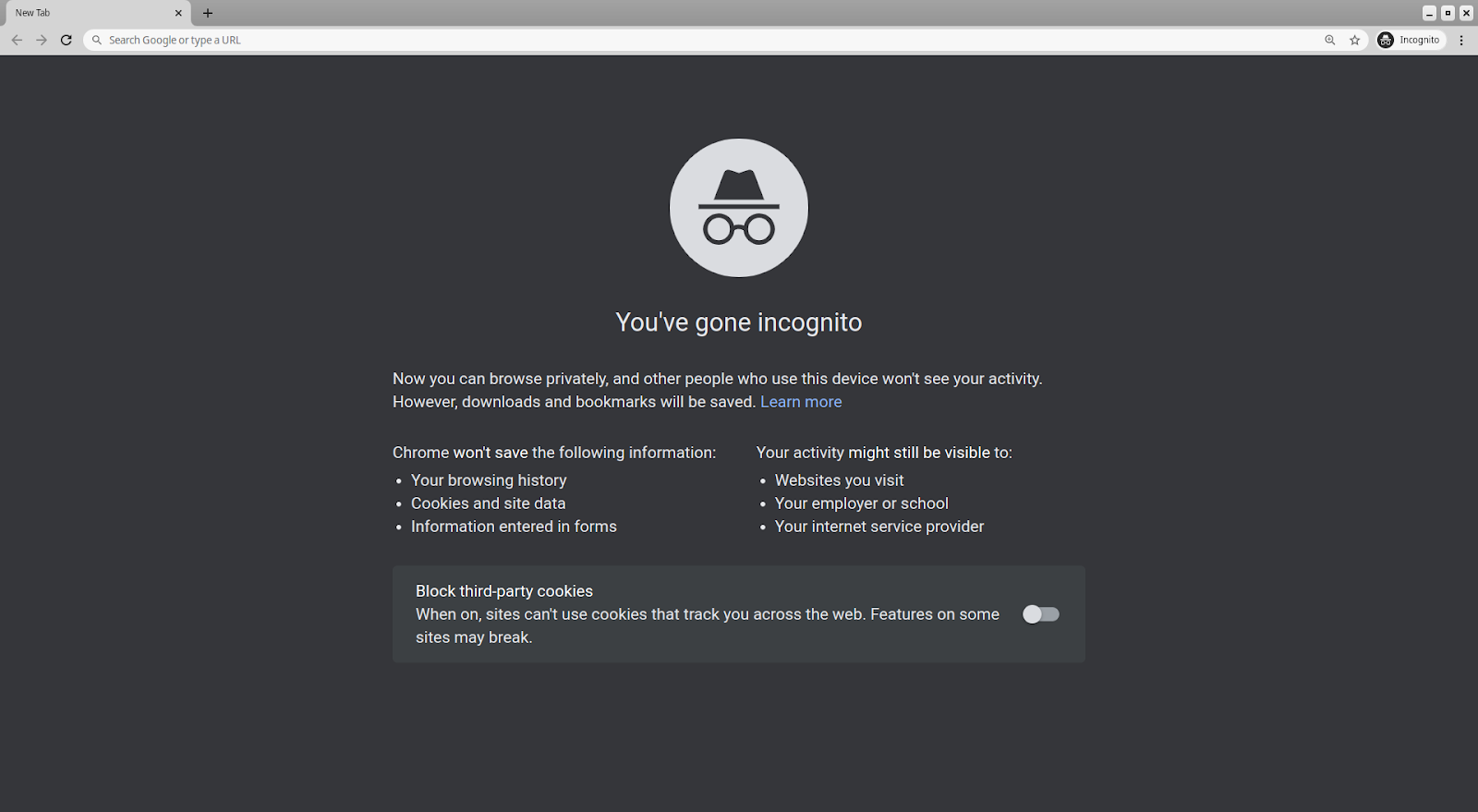
If you are testing in Incognito Mode, be aware that the default setting for
Incognito Mode is to block third-party cookies. This can lead to behavior that
appears similar to cross-site cookies being blocked due to lack of a SameSite
attribute. This setting can be changed on Incognito Mode's New Tab Page, or in
chrome://settings/cookies.
Note that the presence of a cookie in an issue does not necessarily indicate
that something is broken -- you must test thoroughly and determine that for
yourself. Some of those blocked cookies may not affect any site functionality.
Some "legacy" cookies are also intentionally left non-compliant as a
[workaround](https://web.dev/samesite-cookie-recipes/#handling-incompatible-clients)
for [incompatible clients](/updates/same-site/incompatible-clients), and will
continue to appear in the Issues tab despite the site having been updated.
### Testing under Lax+POST
If your site does not use POST requests, you can ignore this section.
Firstly, if you are relying on top-level, cross-site POST requests with cookies
then these will only be sent if they specify SameSite=None; Secure. Also
consider the
[POST/Redirect/GET](https://en.wikipedia.org/wiki/Post/Redirect/Get) pattern as
a way of removing the need for the cookie on that request. Under the new
SameSite behavior, any cookie that was not set with a specified SameSite
attribute value will be treated as SameSite=Lax by default, which will exclude
cookies from these requests. However there is the
“[Lax+POST](/updates/same-site)” special exception that Chrome makes for such
cookies for the first 2 minutes after they are created, which allows them to be
sent on top-level cross-site POST requests (which normal Lax cookies are
excluded from). This special exception for fresh cookies will be phased out in
future Chrome releases.
When testing, you should pay special attention to any requests that require
cross-site POST requests (such as some login flows). If a cookie was granted
Lax+POST due to its age (< 2 minutes), but would otherwise be blocked under
Lax rules, you will most likely see a message in the DevTools console about a
cookie being allowed on a non-idempotent top-level cross-site request (but in
some cases you may not -- check the NetLog (see below) for the definitive
answer). We recommend that you test with both a short (< 2 min) and long
(> 2 min) delay between setting the cookie and making the POST request.
We also recommend testing with the eventual SameSite behavior (after Lax+POST is
phased out). To do this, run Chrome from the command line with the additional
flag --enable-features=SameSiteDefaultChecksMethodRigorously to disable the
Lax+POST exception. (This is automatically applied if you enabled the SameSite
behavior via the #enable-experimental-cookie-features flag.)
For automated testing, it may be impractical to wait for 2 minutes to test the
long-delay behavior. For this purpose, you can use the command line flag
--enable-features=ShortLaxAllowUnsafeThreshold to lower the 2 minute threshold
to 10 seconds.
### Testing Chrome extensions
Chrome extensions must also abide by the new SameSite cookie behavior. Extension
pages, which have a chrome-extension:// scheme URL, are generally considered
cross-site to any web page (https:// or http://). There are certain scenarios
where an exception is made (this is accurate as of Chrome 80, but behavior may
change in the future):
If an extension page initiates a request to a web URL, the request is
considered same-site if the extension has [host
permission](https://developer.chrome.com/extensions/declare_permissions) for
the requested URL in the extension’s manifest. This could happen, for
example, if an extension page has an iframe embedding a site that the
extension has host permission for.
If the top level frame (i.e. the site shown in the URL bar) is an extension
page, and the extension has host permission for the requested URL, and the
requested URL and the initiator of the request are same-site to each other,
and the extension has host permission for the initiator origin, then the
request is considered same-site. For example, this could happen if an
extension has host permission for “\*://\*.site.example/”, and an extension
page loads a.site.example in an iframe, which then navigates to
b.site.example.
The [chrome.cookies API](https://developer.chrome.com/extensions/cookies) is
able to read and set any kind of cookie, including SameSite cookies. However, a
web page embedded in an extension page is considered to be in a third party
context for the purposes of document.cookie (JavaScript) accesses. For [content
scripts](https://developer.chrome.com/extensions/content_scripts), the behavior
of SameSite cookies is exactly the same as if the request were initiated from
the page on which the content script is running.
If your extension embeds a web page on an extension page, we recommend testing
that the necessary cookies are sent on the web request. Blocked cookies should
emit warning messages in the DevTools console for the extension page. If the
special exceptions above apply, no message will appear.
## Something is broken! -- Debugging tips
### The basics
You should suspect SameSite as the underlying problem if your site makes
requests to other domains in embedded contexts (such as embedded
images/videos/social posts, widgets from other sites, etc.), makes POST requests
cross-site (such as in some login and payment flows), fetches cross-site
resources via JavaScript, or otherwise [accesses cookies across
sites](https://web.dev/samesite-cookie-recipes/#use-cases-for-cross-site-or-third-party-cookies).
If the issue is primarily a browser or tab crashing or hanging, it is less
likely to be caused by the new SameSite cookie behavior.
First, check if the problem persists after setting the SameSite flags above to
“Disabled” (note: setting them to “Default” may or may not disable the
features). Remember to restart your browser for the changes to take effect. If
the problem persists, you should suspect a root cause other than the new
SameSite cookie behavior.
If you have turned on third-party cookie blocking (see
chrome://settings/cookies), try turning it off. This is particularly relevant
for Android WebViews, which [block third-party cookies by
default](https://developer.android.com/reference/kotlin/android/webkit/CookieManager#setacceptthirdpartycookies),
even if they have SameSite=None and Secure.
If you are testing in Incognito Mode, be aware that the default setting for
Incognito Mode is to block third-party cookies. This can lead to behavior that
appears similar to cross-site cookies being blocked due to lack of a SameSite
attribute. This setting can be changed on Incognito Mode's New Tab Page, or in
chrome://settings/cookies.
 Try clearing your cache and cookies to see if the problem still reproduces.
Check DevTools for
[issues](https://developers.google.com/web/tools/chrome-devtools/issues) with
SameSite cookies. Unfortunately, Chrome can only tell you when there are cookies
that will behave differently under the new SameSite behavior, but it can’t tell
you which cookies might be responsible for site breakage. However, if there are
no issues about SameSite cookies on any important domains, there may be a
different root cause to the problem.
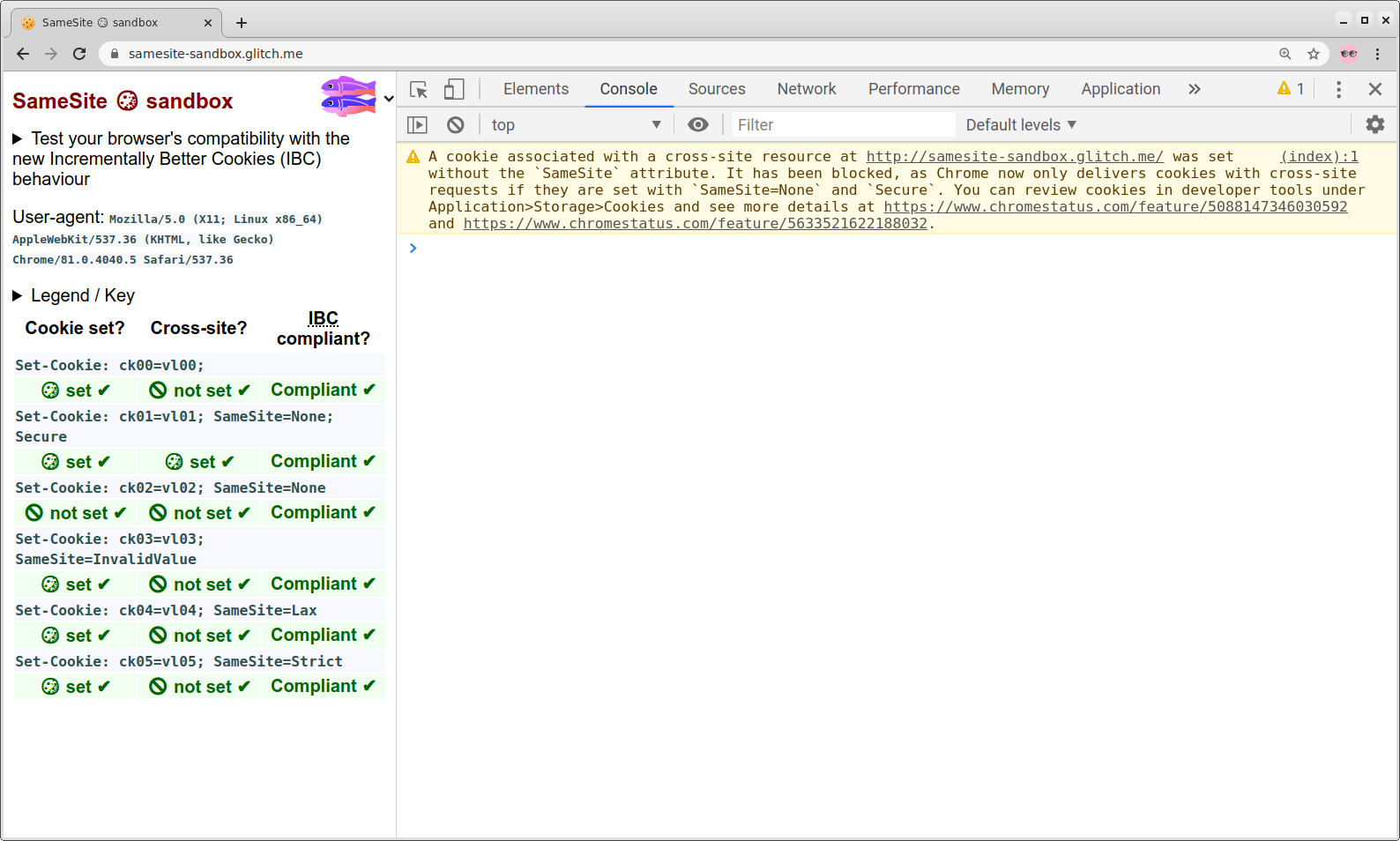
(Note that prior to Chrome 85, there were messages about non-compliant cookies
emitted to the JavaScript console in DevTools on each page load. In Chrome 85,
these messages were removed from the console. The [Issues
](https://developers.google.com/web/tools/chrome-devtools/issues)tab is now the
place to look for this information about SameSite cookies, and contains more
debugging information than the console messages previously did.)
Try clearing your cache and cookies to see if the problem still reproduces.
Check DevTools for
[issues](https://developers.google.com/web/tools/chrome-devtools/issues) with
SameSite cookies. Unfortunately, Chrome can only tell you when there are cookies
that will behave differently under the new SameSite behavior, but it can’t tell
you which cookies might be responsible for site breakage. However, if there are
no issues about SameSite cookies on any important domains, there may be a
different root cause to the problem.
(Note that prior to Chrome 85, there were messages about non-compliant cookies
emitted to the JavaScript console in DevTools on each page load. In Chrome 85,
these messages were removed from the console. The [Issues
](https://developers.google.com/web/tools/chrome-devtools/issues)tab is now the
place to look for this information about SameSite cookies, and contains more
debugging information than the console messages previously did.)
 ### Using the DevTools Network panel
Open the Network panel in DevTools and capture the network activity that occurs
when reproducing the problem. If the expected network activity is absent, reload
the page by pressing Ctrl+R in DevTools. Find the request or requests that are
not working properly. This may be a request that returns an error code like 403
(indicating an authentication problem, possibly caused by missing cookies), it
may be highlighted in red, etc. It may be helpful to check the cookies listed in
the Issues tab, as they should link directly to the affected requests (if they
do not, refresh the page to ensure that the request is captured on the Network
tab). Another helpful way to filter requests is to click on the "Has blocked
cookies" checkbox at the rightmost side of the toolbar with the filter box.
Click on the problematic request and go to the Cookies tab (right under the
timeline, next to Headers, Preview, Response, Timing, etc.). Click on “show
filtered out request cookies”. All the rows highlighted in yellow are cookies
that were excluded from the request or rejected from the response for one reason
or another. If you hover over the info icon on these blocked cookies, a tooltip
will explain why that cookie was excluded. There may be multiple reasons why a
cookie was excluded.
[
### Using the DevTools Network panel
Open the Network panel in DevTools and capture the network activity that occurs
when reproducing the problem. If the expected network activity is absent, reload
the page by pressing Ctrl+R in DevTools. Find the request or requests that are
not working properly. This may be a request that returns an error code like 403
(indicating an authentication problem, possibly caused by missing cookies), it
may be highlighted in red, etc. It may be helpful to check the cookies listed in
the Issues tab, as they should link directly to the affected requests (if they
do not, refresh the page to ensure that the request is captured on the Network
tab). Another helpful way to filter requests is to click on the "Has blocked
cookies" checkbox at the rightmost side of the toolbar with the filter box.
Click on the problematic request and go to the Cookies tab (right under the
timeline, next to Headers, Preview, Response, Timing, etc.). Click on “show
filtered out request cookies”. All the rows highlighted in yellow are cookies
that were excluded from the request or rejected from the response for one reason
or another. If you hover over the info icon on these blocked cookies, a tooltip
will explain why that cookie was excluded. There may be multiple reasons why a
cookie was excluded.
[ ](/updates/same-site/test-debug/tsyEts8ZOXE.png)
Look for cookies that were excluded solely for SameSite reasons. If any of these
cookies are important to site functionality, their absence is likely the cause
of the problem and they will need to be updated to comply with the new SameSite
behavior.
### Using Chrome histograms
Chrome records metrics ("histograms") about internal activity as you browse the
web. These can help diagnose cookie problems.
Go to chrome://histograms and look for the following entries:
* Cookie.SameSiteUnspecifiedEffective: This histogram logs the
"effective" SameSite mode of every cookie that did not specify a
SameSite attribute, i.e. what SameSite rules the browser actually
applied to it. The "0" bucket corresponds to None, the "1" bucket
corresponds to Lax, and the "3" bucket corresponds to Lax and
eligible for Lax+POST.
* Cookie.SameSiteNoneIsSecure: This histogram logs whether a
SameSite=None cookie was Secure. The "0" bucket means not Secure,
and the "1" bucket means Secure.
To debug your own site, you can hit "Refresh" at the top of the page to clear
the previous histogram entries, then check the histogram entries again after
reproducing the problem.
For the full descriptions of every histogram, see
[histograms.xml](https://source.chromium.org/chromium/chromium/src/+/HEAD:tools/metrics/histograms/histograms.xml?originalUrl=https:%2F%2Fcs.chromium.org%2F)
and
[enums.xml](https://source.chromium.org/chromium/chromium/src/+/HEAD:tools/metrics/histograms/enums.xml?originalUrl=https:%2F%2Fcs.chromium.org%2F)
(very large files!) in the Chromium source tree.
### Using a NetLog dump
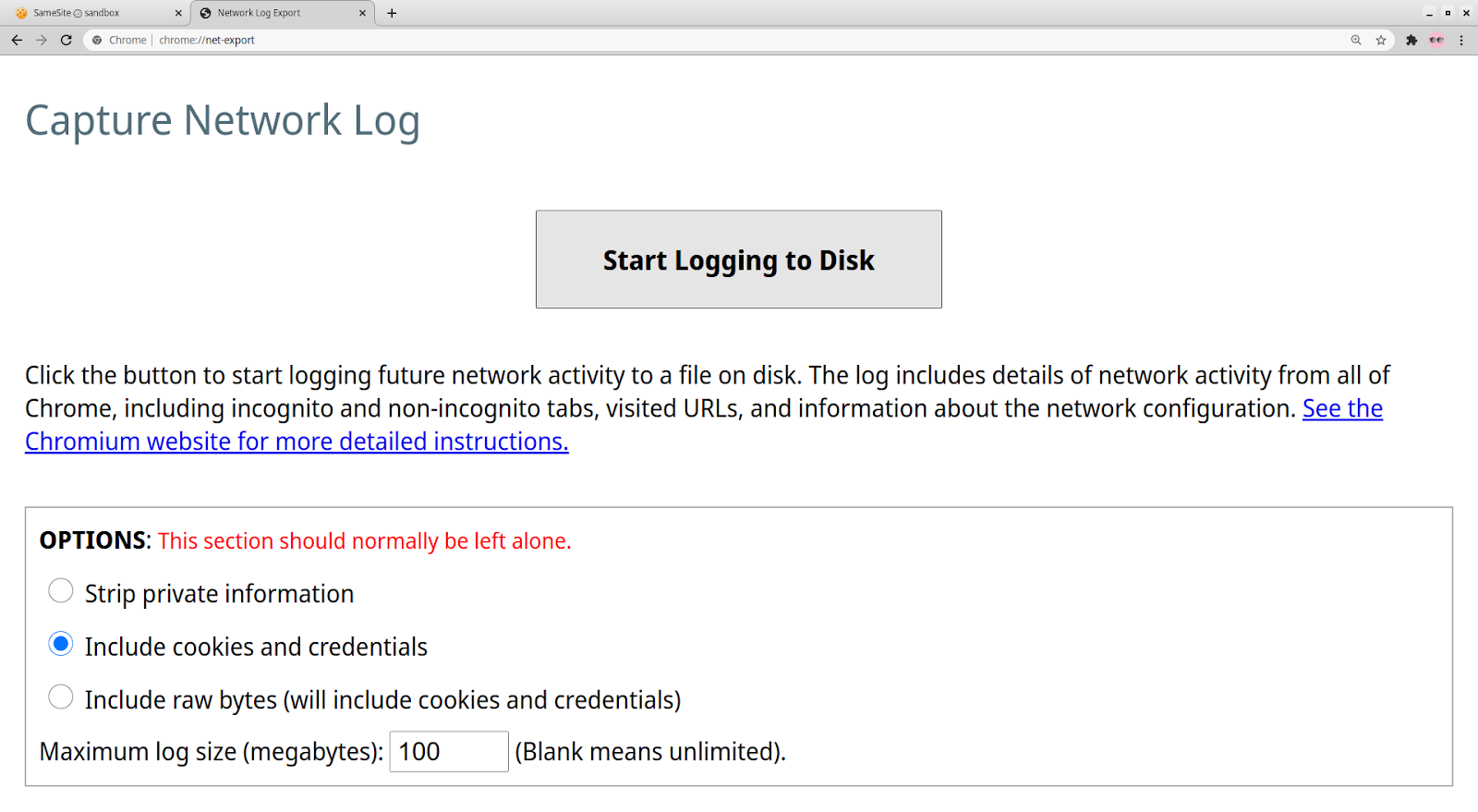
Capture a NetLog dump (a record of all network activity) by following [these
instructions](/for-testers/providing-network-details). Make sure to select
“Include cookies and credentials” when you capture the log. (Since such a log
may contain sensitive information, such as cookies with login information, use
your judgement when sharing it with others.) Use the [NetLog
viewer](https://netlog-viewer.appspot.com/#import) to open the captured log.
](/updates/same-site/test-debug/tsyEts8ZOXE.png)
Look for cookies that were excluded solely for SameSite reasons. If any of these
cookies are important to site functionality, their absence is likely the cause
of the problem and they will need to be updated to comply with the new SameSite
behavior.
### Using Chrome histograms
Chrome records metrics ("histograms") about internal activity as you browse the
web. These can help diagnose cookie problems.
Go to chrome://histograms and look for the following entries:
* Cookie.SameSiteUnspecifiedEffective: This histogram logs the
"effective" SameSite mode of every cookie that did not specify a
SameSite attribute, i.e. what SameSite rules the browser actually
applied to it. The "0" bucket corresponds to None, the "1" bucket
corresponds to Lax, and the "3" bucket corresponds to Lax and
eligible for Lax+POST.
* Cookie.SameSiteNoneIsSecure: This histogram logs whether a
SameSite=None cookie was Secure. The "0" bucket means not Secure,
and the "1" bucket means Secure.
To debug your own site, you can hit "Refresh" at the top of the page to clear
the previous histogram entries, then check the histogram entries again after
reproducing the problem.
For the full descriptions of every histogram, see
[histograms.xml](https://source.chromium.org/chromium/chromium/src/+/HEAD:tools/metrics/histograms/histograms.xml?originalUrl=https:%2F%2Fcs.chromium.org%2F)
and
[enums.xml](https://source.chromium.org/chromium/chromium/src/+/HEAD:tools/metrics/histograms/enums.xml?originalUrl=https:%2F%2Fcs.chromium.org%2F)
(very large files!) in the Chromium source tree.
### Using a NetLog dump
Capture a NetLog dump (a record of all network activity) by following [these
instructions](/for-testers/providing-network-details). Make sure to select
“Include cookies and credentials” when you capture the log. (Since such a log
may contain sensitive information, such as cookies with login information, use
your judgement when sharing it with others.) Use the [NetLog
viewer](https://netlog-viewer.appspot.com/#import) to open the captured log.
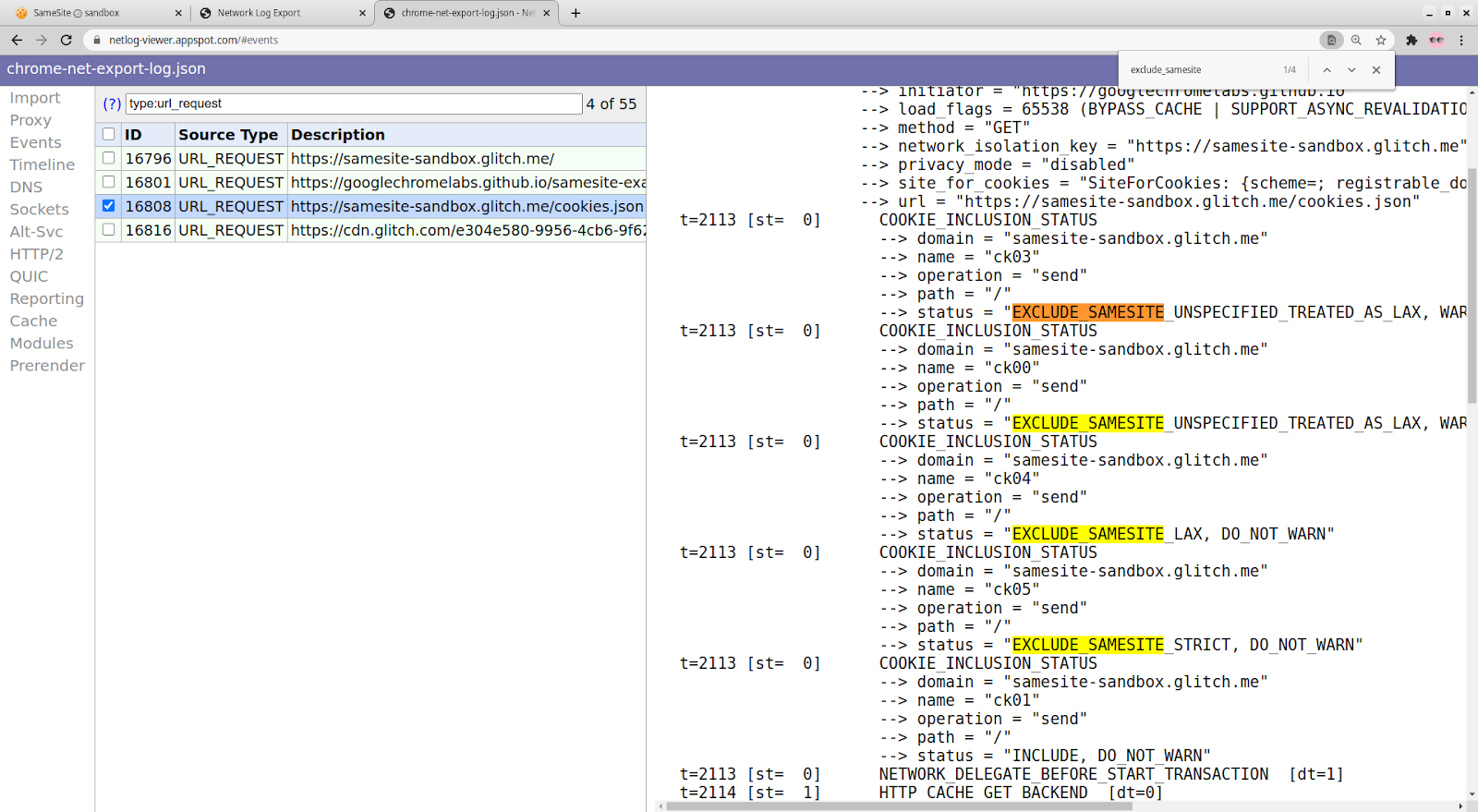
 Click on Events in the sidebar and enter “type:url_request” in the search bar to
view all the HTTP(S) requests captured in the log. You can additionally filter
by requests with cookies blocked due to SameSite by adding “exclude_samesite” to
the search bar.
If you click on each request, you can look for the following things:
Any COOKIE_INCLUSION_STATUS entry with status
"EXCLUDE_SAMESITE_UNSPECIFIED_TREATED_AS_LAX,
WARN_SAMESITE_UNSPECIFIED_CROSS_SITE_CONTEXT" and no other exclusion
reasons. This will indicate that the cookie was blocked because of the
SameSite-Lax-by-default rules, but would not have been blocked otherwise.
Statuses with "WARN_SAMESITE_UNSPECIFIED_LAX_ALLOW_UNSAFE". This would
indicate that the cookie would be expected to be blocked under
Lax-by-default, but is instead allowed due to the 2 minute Lax+POST
intervention. Such a cookie may not be causing problems now, but will in the
future when Lax+POST is deprecated. See "Testing under Lax+POST" section
above for more information.
Statuses with "EXCLUDE_SAMESITE_NONE_INSECURE, WARN_SAMESITE_NONE_INSECURE"
and no other exclusion reasons. This would indicate that the cookie was
blocked because of Cookies-without-SameSite-must-be-Secure, but would not
have been blocked otherwise.
Statuses indicating EXCLUDE_USER_PREFERENCES mean that third-party cookie
blocking is likely enabled, and the blocked cookie was a third-party cookie,
or cookies from that site were blocked altogether by the user's settings.
You can view cookie settings at chrome://settings/cookies.
Both request and response cookies are shown here. If you suspect that your
server’s Set-Cookie response header is incorrect, you can search for
“type:cookie_store” and look for a COOKIE_STORE_COOKIE_ADDED entry, which will
list the properties of the cookie, as interpreted by Chrome.
Click on Events in the sidebar and enter “type:url_request” in the search bar to
view all the HTTP(S) requests captured in the log. You can additionally filter
by requests with cookies blocked due to SameSite by adding “exclude_samesite” to
the search bar.
If you click on each request, you can look for the following things:
Any COOKIE_INCLUSION_STATUS entry with status
"EXCLUDE_SAMESITE_UNSPECIFIED_TREATED_AS_LAX,
WARN_SAMESITE_UNSPECIFIED_CROSS_SITE_CONTEXT" and no other exclusion
reasons. This will indicate that the cookie was blocked because of the
SameSite-Lax-by-default rules, but would not have been blocked otherwise.
Statuses with "WARN_SAMESITE_UNSPECIFIED_LAX_ALLOW_UNSAFE". This would
indicate that the cookie would be expected to be blocked under
Lax-by-default, but is instead allowed due to the 2 minute Lax+POST
intervention. Such a cookie may not be causing problems now, but will in the
future when Lax+POST is deprecated. See "Testing under Lax+POST" section
above for more information.
Statuses with "EXCLUDE_SAMESITE_NONE_INSECURE, WARN_SAMESITE_NONE_INSECURE"
and no other exclusion reasons. This would indicate that the cookie was
blocked because of Cookies-without-SameSite-must-be-Secure, but would not
have been blocked otherwise.
Statuses indicating EXCLUDE_USER_PREFERENCES mean that third-party cookie
blocking is likely enabled, and the blocked cookie was a third-party cookie,
or cookies from that site were blocked altogether by the user's settings.
You can view cookie settings at chrome://settings/cookies.
Both request and response cookies are shown here. If you suspect that your
server’s Set-Cookie response header is incorrect, you can search for
“type:cookie_store” and look for a COOKIE_STORE_COOKIE_ADDED entry, which will
list the properties of the cookie, as interpreted by Chrome.
 To check whether Chrome considers a request cross-site, you can compare the
site_for_cookies property of the request (this represents the top-frame origin)
with the URL of the request. If these have the same registrable domain or
[eTLD+1](https://stackoverflow.com/a/59773164) (the effective Top Level Domain
-- something like .com or .net or .co.uk -- as well as the label immediately to
its left) then the request is most likely considered at least Laxly same-site
(except in some cases with POST requests) and should attach cookies with
SameSite=Lax or cookies defaulted into Lax mode. If they have different
registrable domains, or if the site_for_cookies has an empty registrable domain,
the request is always considered cross-site. The if the initiator property of
the request is either "not an origin" or also shares the same registrable domain
as the site_for_cookies and the request URL, then the request should
additionally attach Strict cookies.
The NetLog only covers cookies accessed over the network via HTTP(S) and does
not include other methods of cookie access such as document.cookie (JavaScript)
or chrome.cookies (extensions). For far more information about debugging using
NetLogs, refer to [this
document](https://chromium.googlesource.com/chromium/src/+/HEAD/net/docs/crash-course-in-net-internals.md).
### It was working until M86, now it's broken
There is a known bug with Schemeful Same-Site in which the incorrect issue is
displayed. Please see [Testing and Debugging Tips for Schemeful
Same-Site](/updates/schemeful-same-site/testing-and-debugging-tips-for-schemeful-same-site).
This is fixed in M87.
## I found the problematic cookie(s). Now what?
If the cookie is on a domain you control: You will need to update that
cookie by setting SameSite=None; Secure on it. See resources
[here](https://web.dev/samesite-cookie-recipes/) and
[here](https://github.com/GoogleChromeLabs/samesite-examples).
If the cookie is on a third-party domain: You should reach out to the owner
of the domain setting that cookie and ask them to update it with
SameSite=None; Secure.
Still stuck? Post a question with the [“samesite”
tag](https://stackoverflow.com/questions/tagged/samesite) on Stack Overflow, or
file a Chrome bug using [this template](https://bit.ly/2lJMd5c).
To check whether Chrome considers a request cross-site, you can compare the
site_for_cookies property of the request (this represents the top-frame origin)
with the URL of the request. If these have the same registrable domain or
[eTLD+1](https://stackoverflow.com/a/59773164) (the effective Top Level Domain
-- something like .com or .net or .co.uk -- as well as the label immediately to
its left) then the request is most likely considered at least Laxly same-site
(except in some cases with POST requests) and should attach cookies with
SameSite=Lax or cookies defaulted into Lax mode. If they have different
registrable domains, or if the site_for_cookies has an empty registrable domain,
the request is always considered cross-site. The if the initiator property of
the request is either "not an origin" or also shares the same registrable domain
as the site_for_cookies and the request URL, then the request should
additionally attach Strict cookies.
The NetLog only covers cookies accessed over the network via HTTP(S) and does
not include other methods of cookie access such as document.cookie (JavaScript)
or chrome.cookies (extensions). For far more information about debugging using
NetLogs, refer to [this
document](https://chromium.googlesource.com/chromium/src/+/HEAD/net/docs/crash-course-in-net-internals.md).
### It was working until M86, now it's broken
There is a known bug with Schemeful Same-Site in which the incorrect issue is
displayed. Please see [Testing and Debugging Tips for Schemeful
Same-Site](/updates/schemeful-same-site/testing-and-debugging-tips-for-schemeful-same-site).
This is fixed in M87.
## I found the problematic cookie(s). Now what?
If the cookie is on a domain you control: You will need to update that
cookie by setting SameSite=None; Secure on it. See resources
[here](https://web.dev/samesite-cookie-recipes/) and
[here](https://github.com/GoogleChromeLabs/samesite-examples).
If the cookie is on a third-party domain: You should reach out to the owner
of the domain setting that cookie and ask them to update it with
SameSite=None; Secure.
Still stuck? Post a question with the [“samesite”
tag](https://stackoverflow.com/questions/tagged/samesite) on Stack Overflow, or
file a Chrome bug using [this template](https://bit.ly/2lJMd5c).